You have a good image. Then you add a title, and the letters overlap the subject, the background makes them hard to read, and the frame feels crowded. Planning space for text while generating the image can help. This is where negative space comes in.
Two pairs of images show two ways to use that space. The large word “RAGE” fills the upper part of the frame. The small “flying mouse” caption leaves most of the dark area untouched.
What is negative space in composition?
Negative space is the area around the main subject and between elements. It helps us read their shape, size and position relative to one another. It can be bright, dark, colourful or grainy. It does not have to be a flat, uniform surface.
A small figure against a huge wall can suggest solitude. A large sky above an object emphasises its scale. Cropping the same frame tightly changes those relationships, even when the object itself stays the same.
In a layout, a quieter area can accommodate a headline. You still need to check contrast and details that cut through the letters. Empty space is not always suitable space for text.
“RAGE”: space above the subject
I started with this short prompt:
a dog, barking, close up, negative space around
After generating the image, I opened the Midjourney Editor and used:
make red text "RAGE"
In this attempt, text RAGE alone did not work. The instruction make red text "RAGE" produced the result shown here. I changed several things at once: added the verb make, the colour red and quotation marks around the word. This does not establish which change made the difference. It is a practical observation from this image, not a guarantee for every attempt.
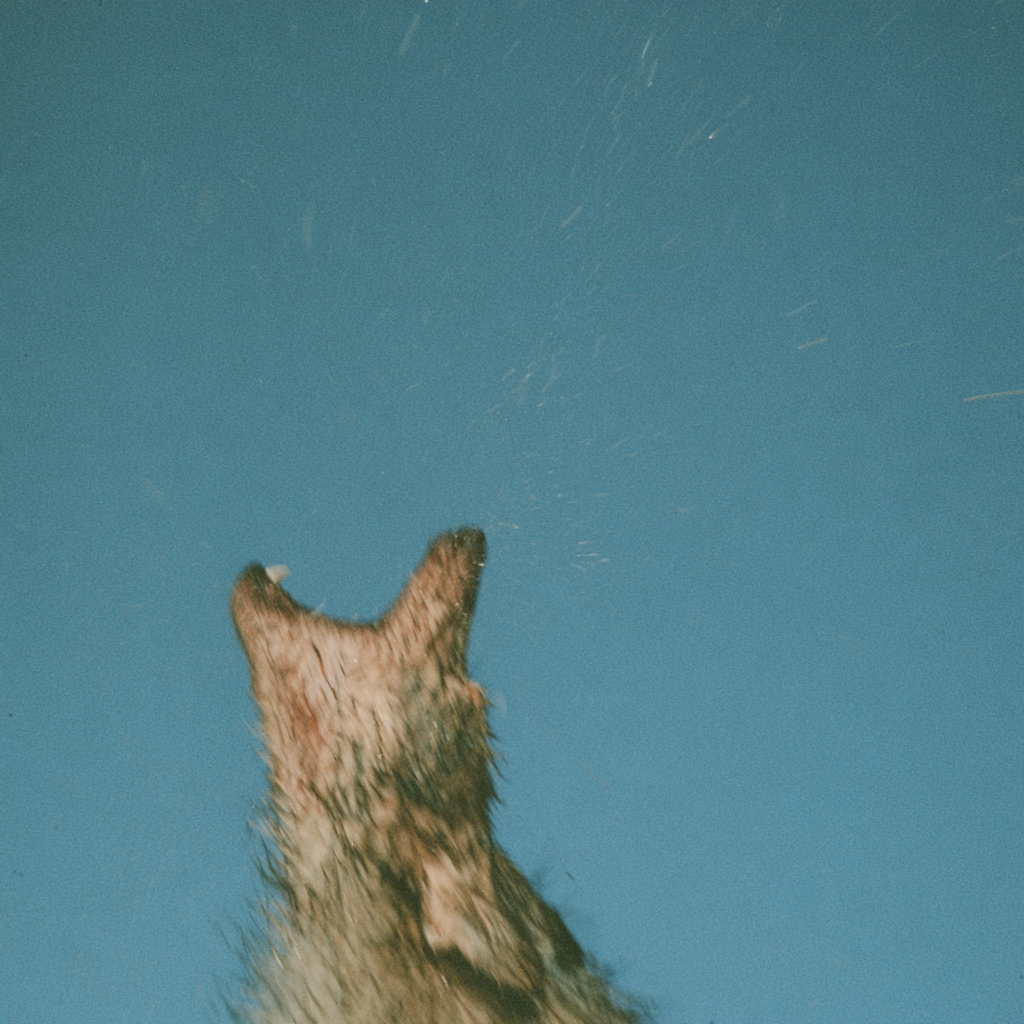
Your eye follows the silhouette upwards. The background has grain and small marks, but no second large object. The direction of the composition remains clear.
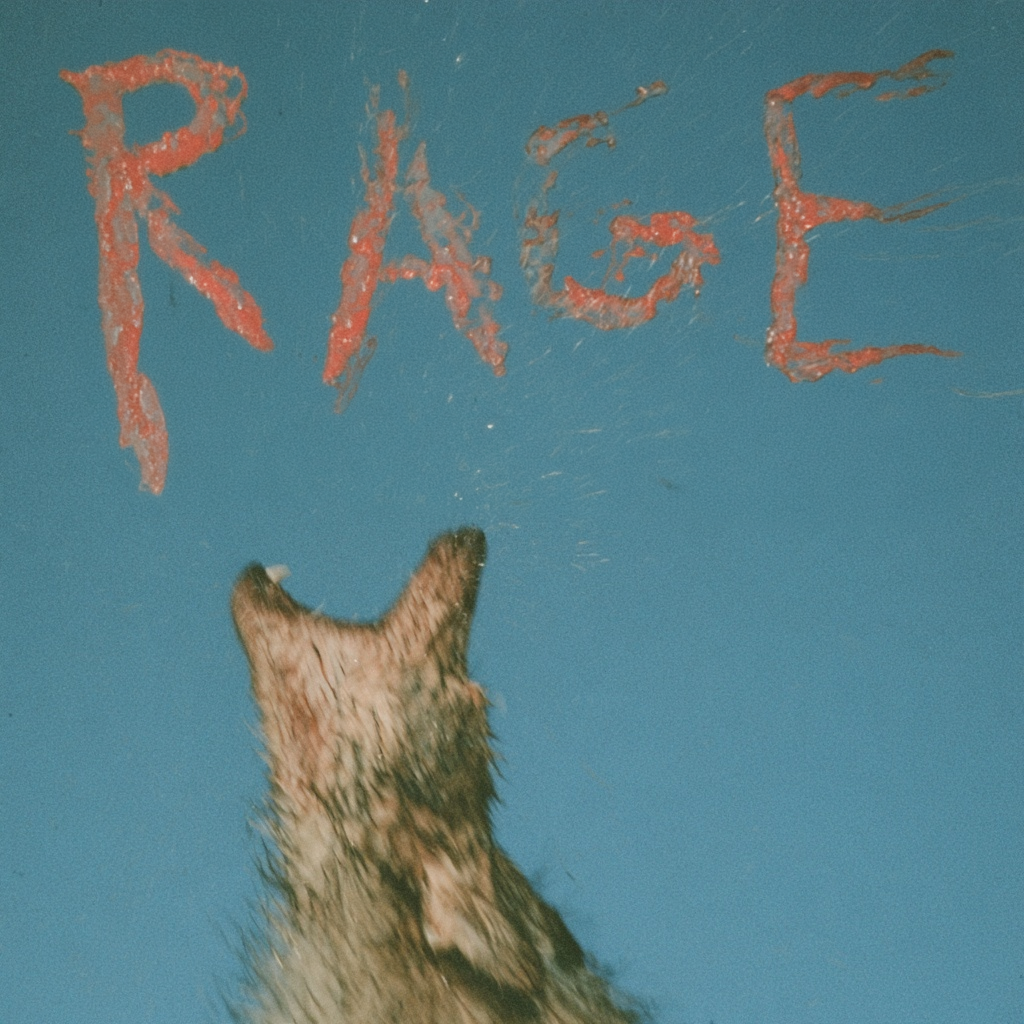
The warm lettering stands out against the cool background. Its irregular edges suit the blurred, grainy image. The text changes the visual hierarchy: it draws attention rather than acting as a discreet caption.
The area occupied by letters is no longer empty. The gaps between the word and the silhouette, between the letters, and along the edges still matter. At thumbnail size, check whether the texture makes the word harder to read.
“flying mouse”: a small caption in a large space
The image prompt was just as short:
a dark mouse with negative space
I then opened the image in the Midjourney Editor and entered:
text "flying mouse"
Here, that instruction was enough. I first created the image with open space, then added the lettering in a second step.
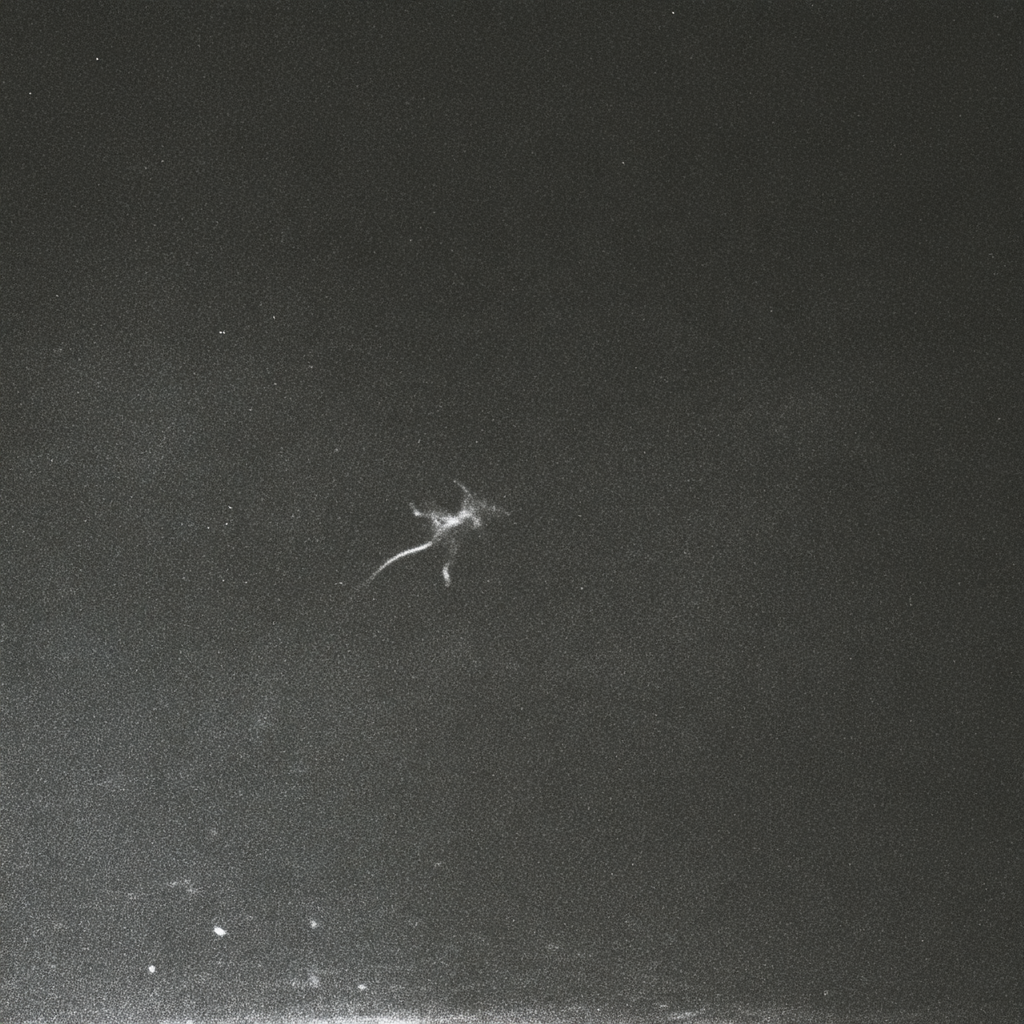
The bright silhouette is tiny but visible because of the contrast. Its surroundings establish scale and invite a closer look. Grain does not disqualify an area as negative space; what matters is whether it competes with the main subject.
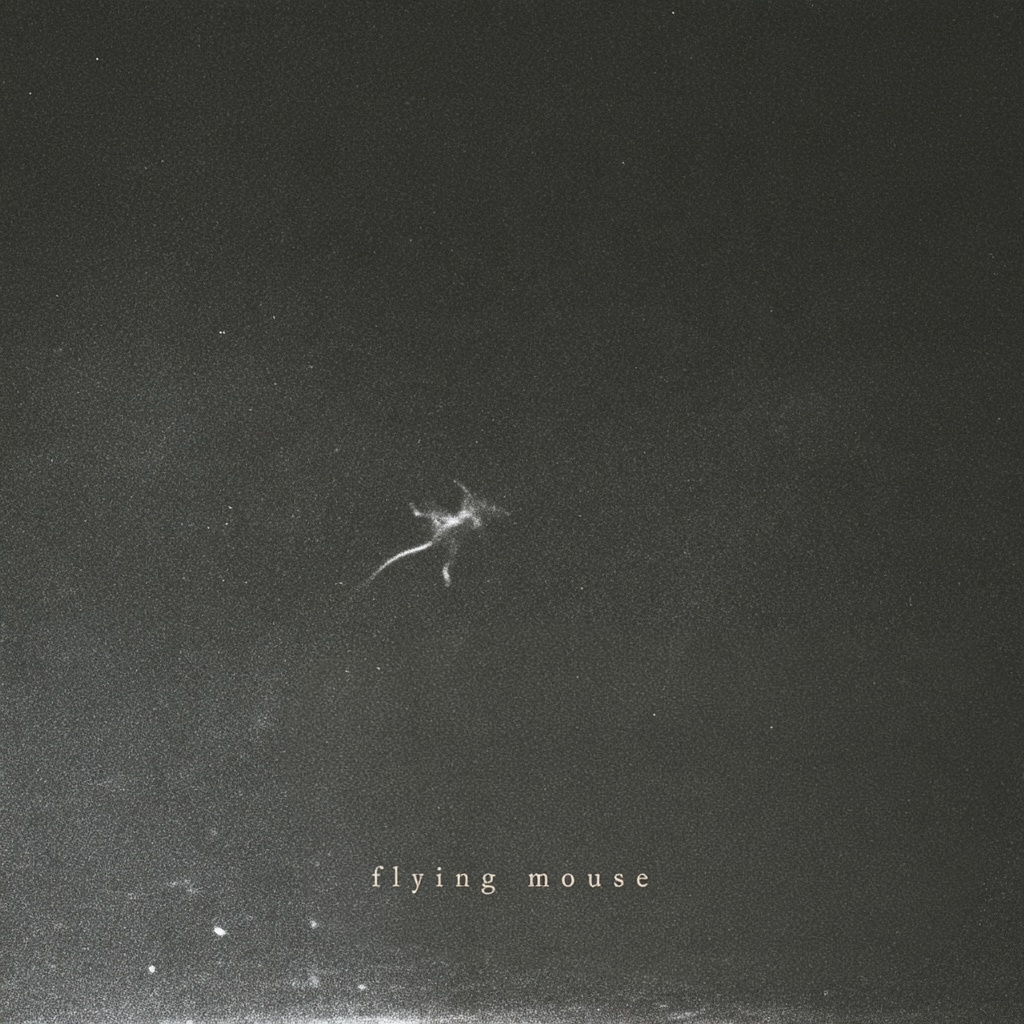
The small text reads as a caption beneath the scene. Its distance from the silhouette lets you look at each separately, while widely spaced letters create a quiet horizontal accent. A title filling half the frame would give the image a different character.
Both examples followed the same sequence: a short prompt with negative space, an image selection, then lettering added in the Midjourney Editor. The text instructions differed: a simple text request worked for “flying mouse”, while “RAGE” needed the more specific version in my attempt.
How to prompt for negative space in Midjourney
In my own attempts, adding negative space to the prompt was enough. That is where I suggest starting: your subject and those two words. If the result gives you the breathing room you need, there is no reason to expand the description. When you need a particular layout, you can specify the position of the subject and the open area.
Midjourney recommends short descriptions and including relevant composition details in its official prompting guide.
Start with a short prompt
a dark mouse with negative space
This is the exact prompt used for the mouse image above. For the dog, I used a dog, barking, close up, negative space around. If you need space on a particular side, try these optional refinements:
subject in the lower third- places the subject towards the bottom;large empty area above the subject- asks for space above it;subject on the right, plain background on the left- describes a side-by-side arrangement;small isolated subject, vast dark background- emphasises a small subject within a large background.
The following longer prompts are additional practice variants. Unlike the two original prompts above, they were not used for the images shown and are not tested recipes for reproducing them.
Space above the subject
blurred dog silhouette in the lower third, vast muted blue background above, film grain, negative space --ar 1:1
A small subject against a dark background
tiny mouse suspended in midair, vast charcoal background, monochrome grainy photograph, negative space --ar 1:1
Room for a headline on the left
red ceramic vase on the right, plain warm grey wall, large empty area on the left, soft daylight --ar 16:9
A positional description is guidance, not a coordinate lock. Review the results and record your settings. Change one part of the description at a time. For more on keeping instructions short, read Minimal Prompts Win.
Three ways to make room for text
- Start with negative space. Add those words to your subject description. If you need a different arrangement, specify the position of the subject and the quiet background.
- Try a sketch as an Image Prompt. Mark the subject's shape and the open area. A reference can also affect content and colour, so do not assume the layout will be reproduced exactly.
- Extend the frame in the Editor. Try making an existing image smaller on a larger canvas or expanding its surroundings. Inspect the generated areas and how they join the original.
The controls depend on the version and interface. See the Image Prompts and Editor documentation for details.
Exercise: add a real headline
To practise my workflow, start with a dark mouse with negative space, then enter text "flying mouse" in the Editor. For the second example, use a dog, barking, close up, negative space around, followed by make red text "RAGE" in the Editor. Check the spelling, colour and placement. Your results may differ from mine.
You can also do a separate typography exercise using one unchanged image:
Choose one subject and a short title. Generate a square image with space above the subject. In a graphics editor, make two versions: one with a large title and one with a small caption. Keep the image identical so you are comparing the typography decision.
- View both versions as thumbnails. What do you notice first?
- Check whether the letters are readable against different parts of the background.
- Assess the gaps between the text, the subject and the edges.
- Make a portrait-format copy. Check what cropping removes and whether you need to extend the frame.
- Record your reason for choosing a version. “A more readable title at this size” says more than “prettier”.
You do not have to fill the whole open area. In “flying mouse”, most of it remains dark background after adding the caption. In “RAGE”, lettering occupies much of the upper frame. Decide based on what the viewer should notice first.
Questions about negative space in Midjourney
Does negative space have to be white?
No. It can be blue, dark or gently textured. Assess its relationship to the main subject.
Is negative space a Midjourney parameter?
It is a composition term used in the prompt text, not a separate flag like --ar.
Is adding “negative space” enough?
Yes, simply adding negative space worked in my attempts. Describing the position is optional and useful when you need room on a particular side.
Do I have to generate the lettering with the image?
No. In both examples, I added the lettering afterwards in the Midjourney Editor. You can also use a graphics editor when you want to set the typeface, size and spacing directly.
Work on your own composition
Read Midjourney Is About Understanding Art for more on deliberate image-making. Bring your own image and intended headline to a one-to-one consultation as material for working on framing, hierarchy and space for text.